Admin Panel
The admin panel is accessible at burglarysupport.com/admin. It requires an account with the admin role — contact a system administrator if you need access.
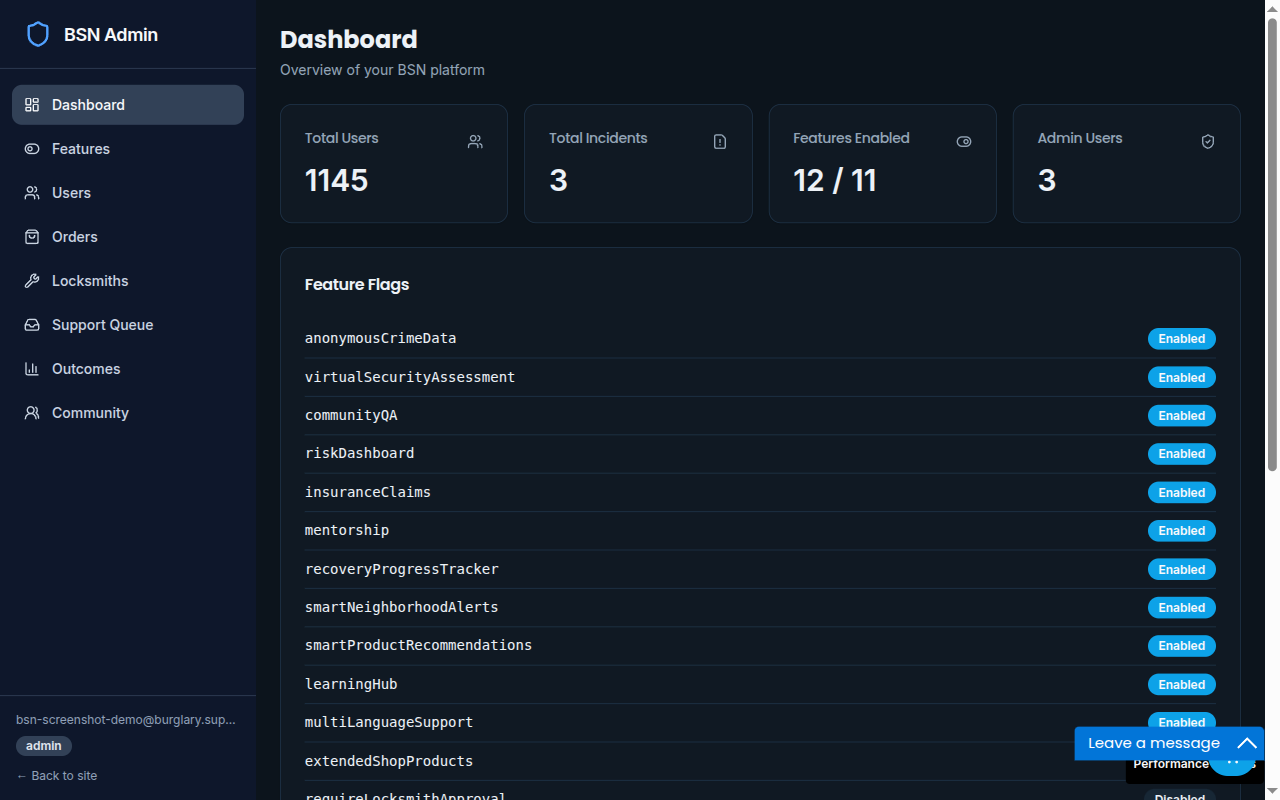
The dashboard shows totals for users, incidents, admin accounts, and how many feature flags are currently enabled, alongside the same flag list described below.
Feature flags
Section titled “Feature flags”Go to Admin → Features or visit burglarysupport.com/admin/features.
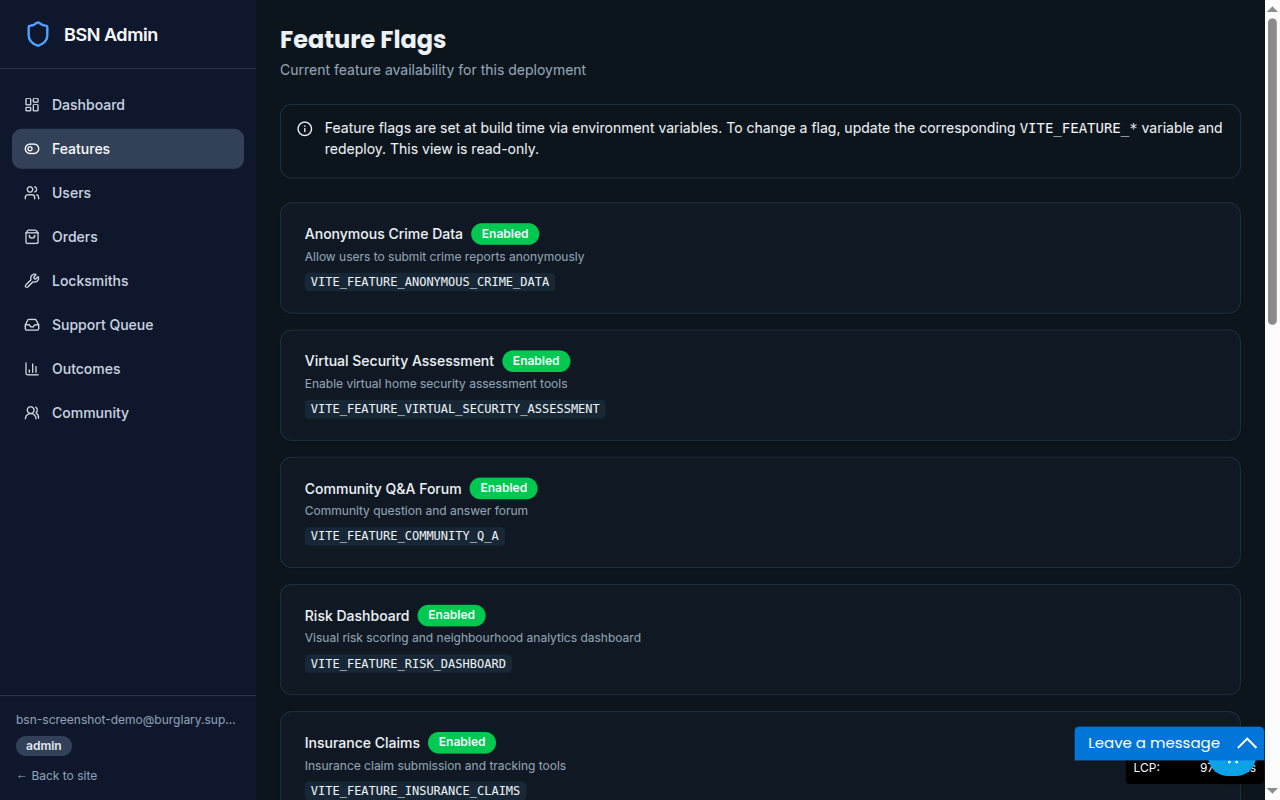
Flags are set at build time via VITE_FEATURE_* environment variables, not toggled live from this screen — the Features page is a read-only view of what’s currently enabled for this deployment. To change a flag, update the corresponding environment variable and redeploy.
| Flag | What it controls |
|---|---|
| Insurance Claims | Claims filing and tracking tool |
| Mentorship | Peer mentor matching |
| Community Q&A | Question and answer forum |
| Recovery Progress Tracker | Structured recovery milestone tracking |
| Smart Neighborhood Alerts | Location-based crime notifications |
| Smart Product Recommendations | Personalised shop recommendations |
| Risk Dashboard | Area risk intelligence panel |
| Anonymous Crime Data | Crowdsourced suspicious activity reports |
| Virtual Security Assessment | AI photo analysis in security assessment |
| Learning Hub | Structured learning modules with badges |
| Multi-Language Support | Language switcher in the UI |
| Extended Shop Products | Additional products beyond the core range |
| Require Locksmith Approval | If on, new locksmith registrations require manual approval before going live |
A disabled flag hides the feature from all users. Data associated with the feature is not deleted.
Approving locksmith registrations
Section titled “Approving locksmith registrations”Locksmiths register themselves at /locksmiths/register, submitting vetting details alongside their contact info: an MLA (Master Locksmith Association) membership number and expiry, a DBS certificate number and expiry, and public liability insurance details — each with an optional evidence file upload. They also have to accept an accreditation agreement (published price card, TS007 3★ anti-snap standard, stated SLA, complaints route) before they can submit. They don’t appear on the public locksmith register until an admin approves them.
Review and act on registrations at Admin → Locksmiths (burglarysupport.com/admin/locksmiths):
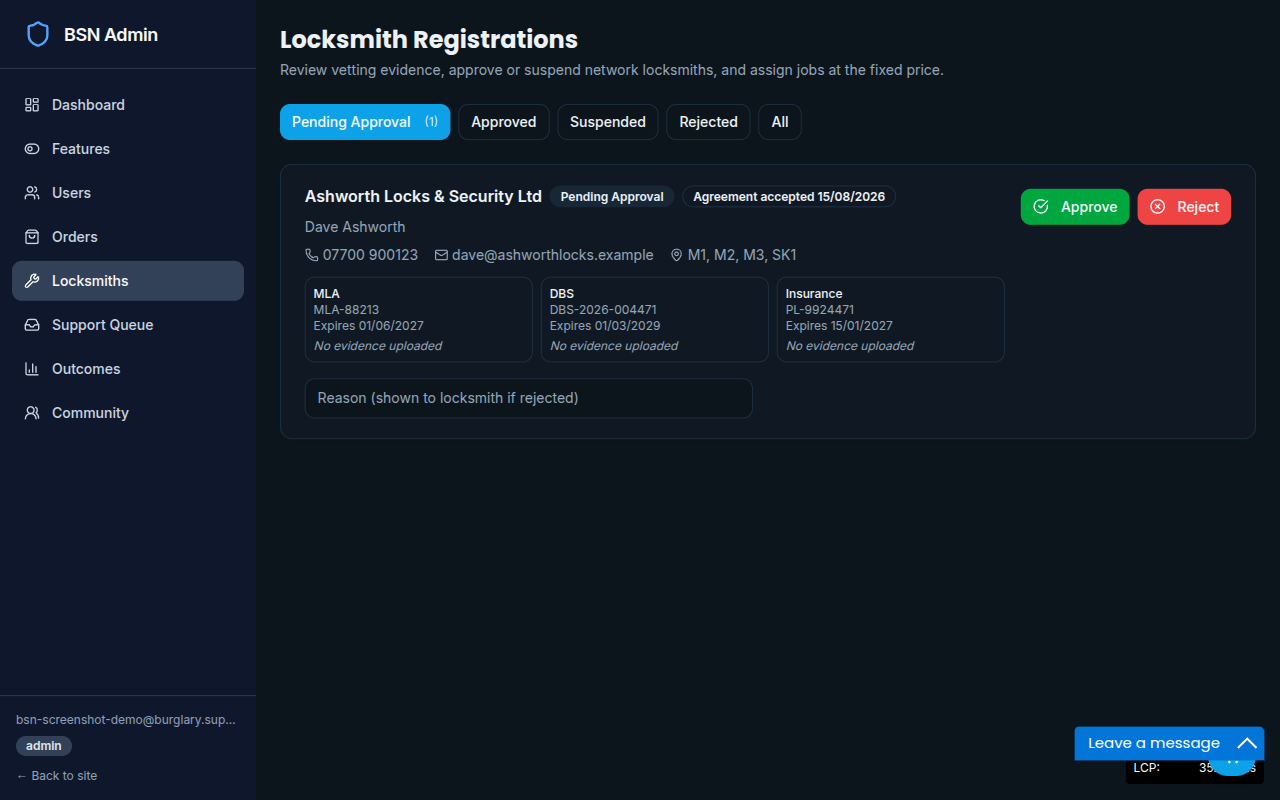
For each pending registration:
- Check the MLA, DBS, and insurance details (and any uploaded evidence) against the postcode districts they say they cover.
- If satisfied, click Approve. The locksmith becomes visible in search results immediately.
- If something doesn’t check out, click Reject with a reason — it’s shown to the applicant.
Use the Pending Approval / Approved / Suspended / Rejected / All tabs to move between queues. An already-approved locksmith can be suspended later (e.g. an MLA membership lapses, a complaint comes in) without deleting their record — suspending removes them from search results but keeps their history and evidence on file.
If Require Locksmith Approval is turned off in feature flags, new registrations go live automatically without manual review.
Support queue
Section titled “Support queue”Contact form messages and product enquiries land at Admin → Support Queue (burglarysupport.com/admin/support-queue), not in an inbox somewhere.
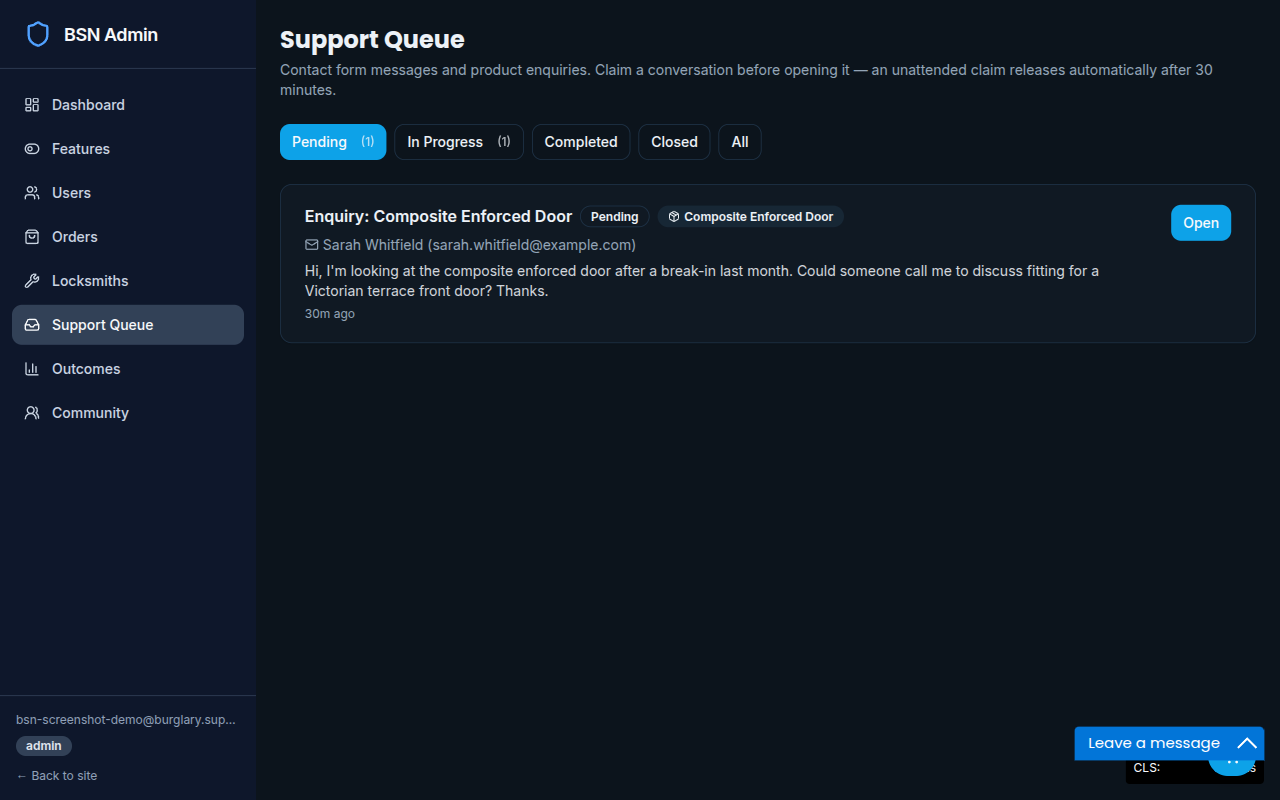
Claim a conversation with Open before you start replying — an unattended claim releases automatically after 30 minutes, so it goes back into the pool for someone else rather than sitting invisibly assigned to someone who’s gone. Messages flagged by crisis-language detection are marked so they can be prioritised. Use the Pending / In Progress / Completed / Closed tabs to track a conversation through to resolution.
Outcomes
Section titled “Outcomes”Admin → Outcomes (burglarysupport.com/admin/outcomes) is where fitted security interventions (a locksmith job, a DIY anti-snap cylinder, etc.) get logged against an incident, so repeat-burglary rates can eventually be compared between incidents with a logged intervention and a comparison group of incidents in the same postcode district with nothing logged.
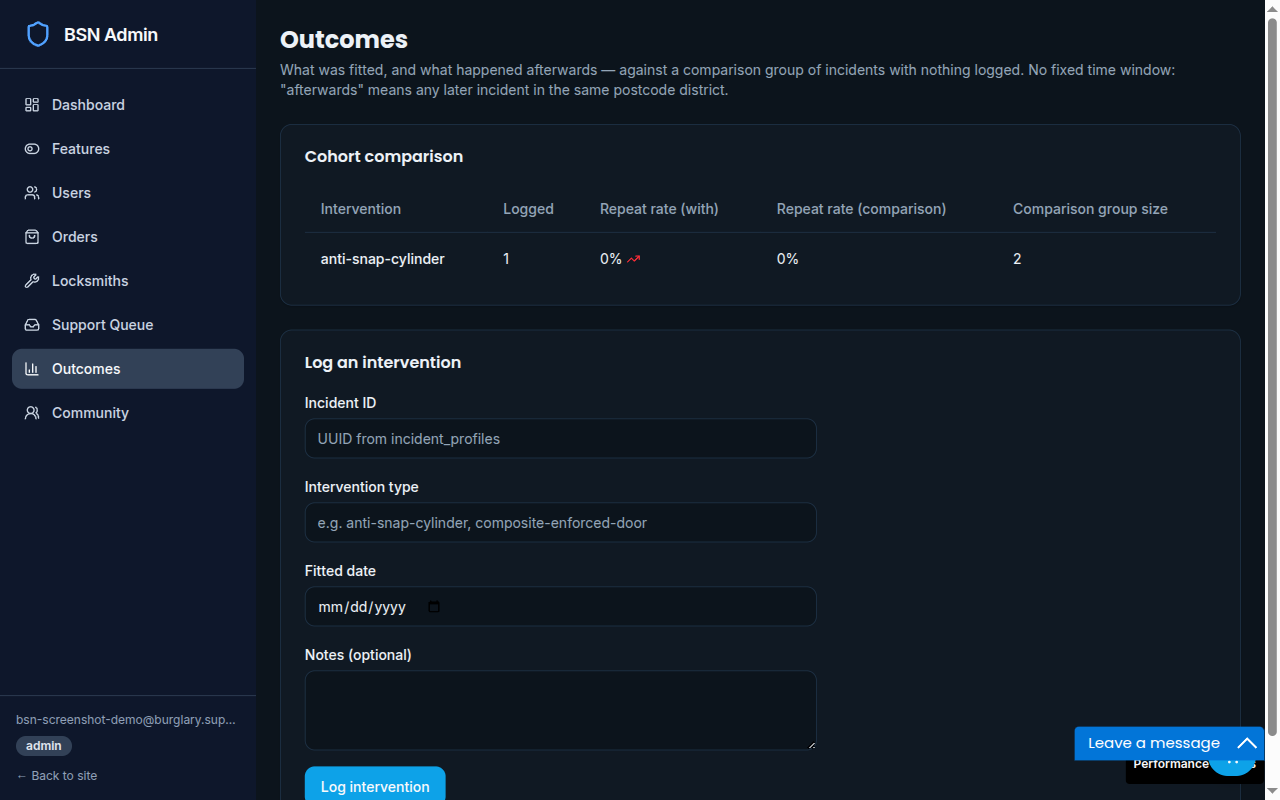
Log an intervention by pasting the incident’s UUID (from incident_profiles), an intervention type (free text, e.g. anti-snap-cylinder, composite-enforced-door), the fitted date, and optional notes. The cohort comparison table above the form updates from this data — it’s only as useful as what gets logged, and there’s no fixed time window, so “repeat” just means any later incident in the same district.
Community
Section titled “Community”Admin → Community (burglarysupport.com/admin/community) is instrumentation, not a moderation tool — it doesn’t add any community features, it counts what the existing Stories and Q&A surfaces are doing.
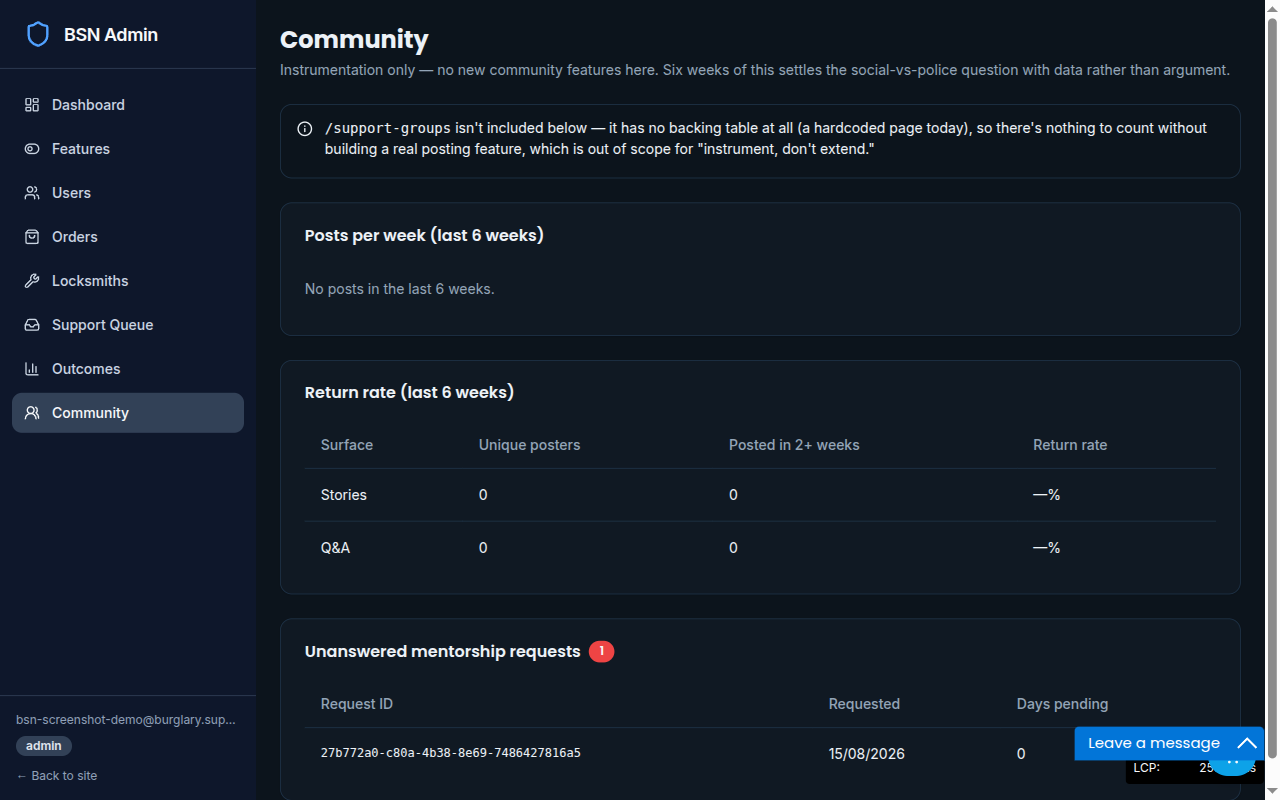
It shows posts per week over the last 6 weeks, a return rate per surface (unique posters vs. posters who came back and posted again within 2+ weeks), and a list of mentorship requests that haven’t been matched with a mentor yet, with how many days they’ve been pending. /support-groups isn’t included — it has no backing table yet, so there’s nothing to count without building a real posting feature there.
Managing users
Section titled “Managing users”Go to Admin → Users (burglarysupport.com/admin/users) to view registered accounts. From here you can:
- Search by email address
- View account creation date and activity summary
- Assign a role, including
police— which also requires picking the officer’s force, so their portal access is scoped to that force’s covered postcode districts - Suspend or delete an account
Suspending an account prevents the user from signing in but preserves their data. Deletion is permanent.
Data requests
Section titled “Data requests”Go to Admin → Data Requests (burglarysupport.com/admin/data-requests) to action a subject-access or erasure request that arrives by email.
Search for the person by the email on their account. You will see every incident they have reported, whether each one is currently shared with a police force, and any previous erasures on the account.
Pick a report and choose Action request to:
- Download my data — a JSON file containing the report, every message in its police thread, and the full record of police access
- Delete this report — permanently removes the report and its message thread
Both do exactly what the person could do themselves from their own report page; this exists for requests that come to you instead.
Every erasure is recorded automatically, whoever performs it — the fact it happened, who did it, the postcode district, and whether the report had been shared with a force. The record deliberately keeps nothing else, so an erasure is still an erasure. You cannot edit or remove these records, and neither can we.