Using the Community Map
The Community Security Map shows anonymised burglary and crime data for your area, combining official UK Police data with reports submitted by community members.
Opening the map
Section titled “Opening the map”Click Map in the navigation bar, or go to burglarysupport.com/map.
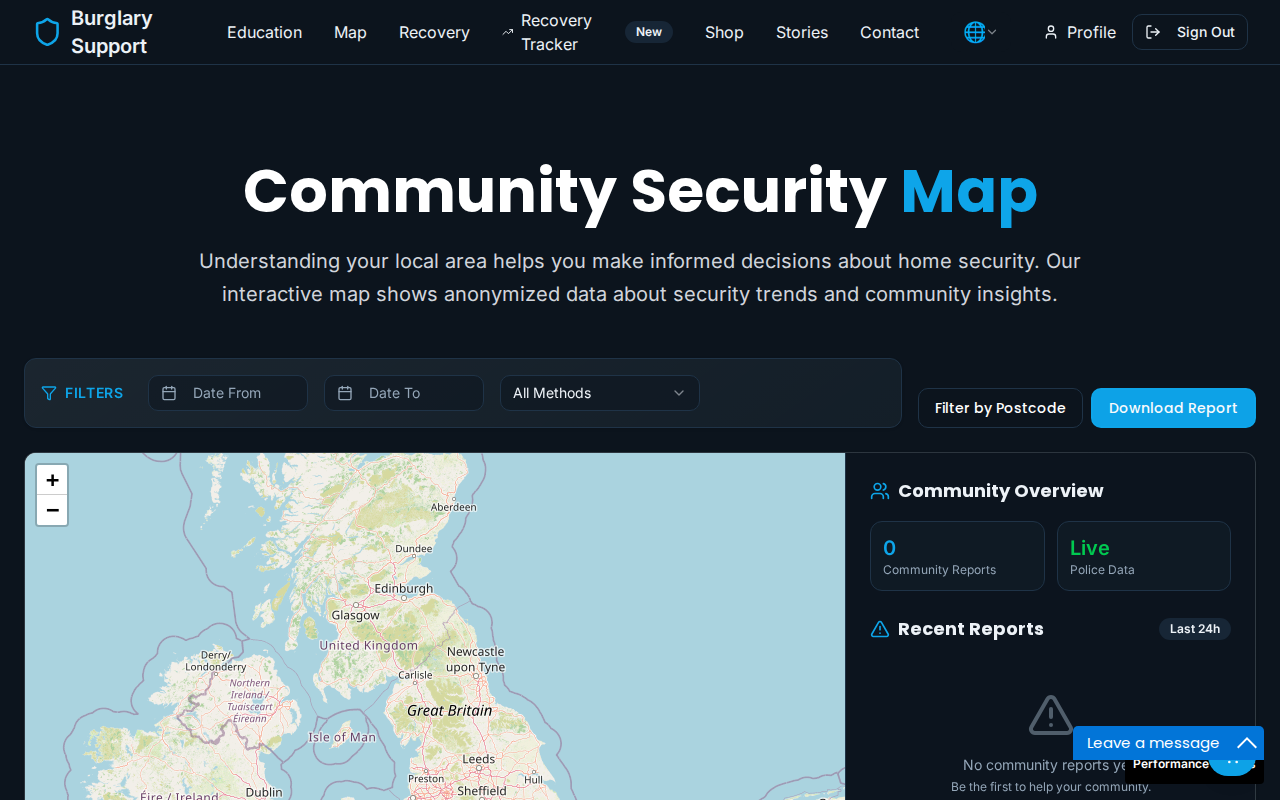
The panel on the right shows:
- Community Reports — incidents submitted through this platform
- Police Data — records from the UK Police open data API
- Recent Reports — the latest activity in your area
Filtering what you see
Section titled “Filtering what you see”Use the controls at the top of the map to narrow down what is shown:
- Date range — set a start and end date to focus on a specific period
- All Methods — filter by method of entry (e.g. forced door, window entry)
- Filter by Postcode — zoom to a specific postcode district
Clicking on an incident
Section titled “Clicking on an incident”Click any marker on the map to open a summary of that incident. The location shown is anonymised — only the first half of the postcode is used, so individual properties cannot be identified.
Reporting an incident
Section titled “Reporting an incident”You can add your own incident to the map. You need to be signed in to submit a report.
- Click the Anonymised Report button at the top of the map, or go to burglarysupport.com/report-incident.
-
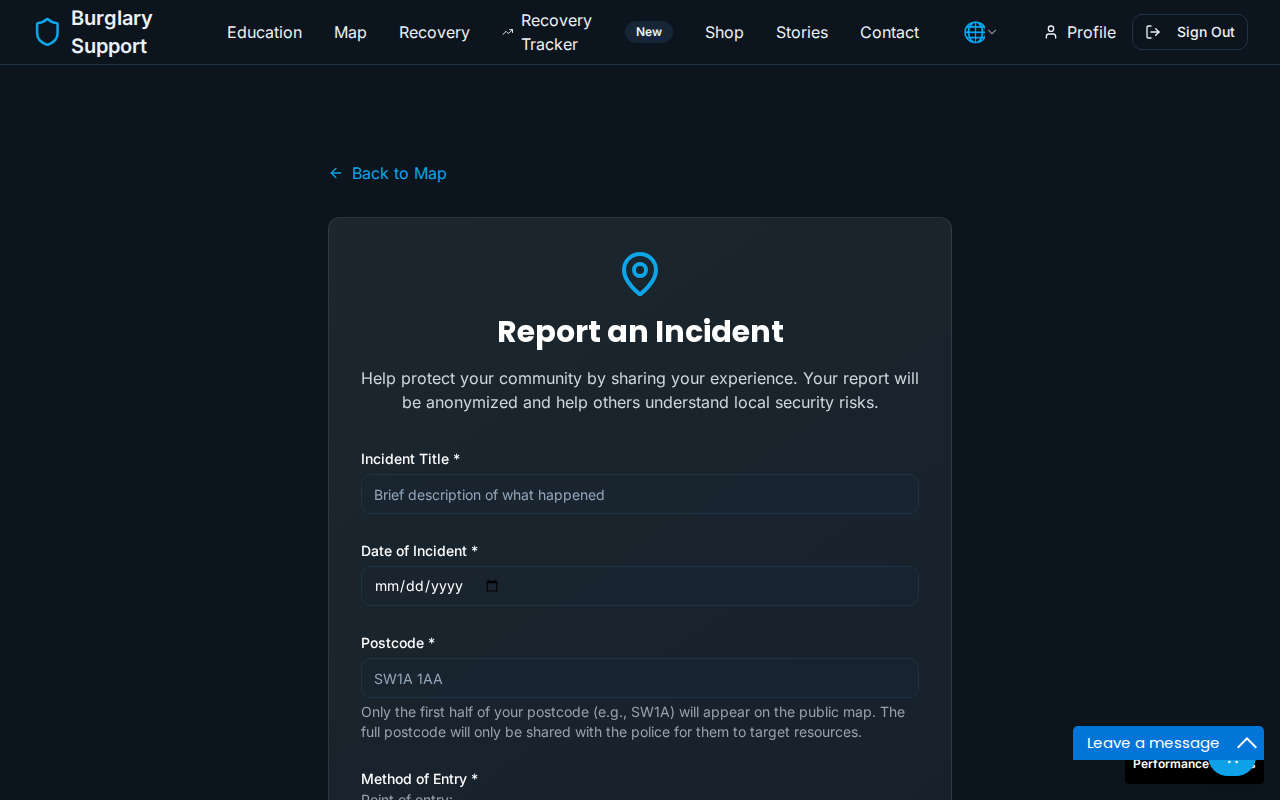
Fill in the form:
- Incident Title — a brief description of what happened
- Date of Incident — use the date picker
- Postcode — enter your full postcode. Only the outward code (first half, e.g. SW1A) will appear on the public map. It must be a real postcode: we look it up to place the report, and the form will tell you if we can’t find it rather than guessing.
- Method of Entry — how the burglar gained access, if known
- Add any other details in the description field
-
Optionally tick share this report’s precise location with my local police force. This is off by default and is not required — see Police Portal for exactly what a force receives, what they don’t, and how to withdraw consent later.
-
Click Submit Report.
Your report will appear on the map shortly, showing only the outward code. If you consented to police sharing, you’ll be taken straight to that report’s own page, where you can message your force, see who has opened it, download a copy of everything held about it, or delete it.